The light map
The map is the stage seen from above, in metres, with the audience at the bottom: it helps you remember where the lights are and where they point. You open it with Light map from a venue's card, or with Open the light map from Allestimenti (Setups).
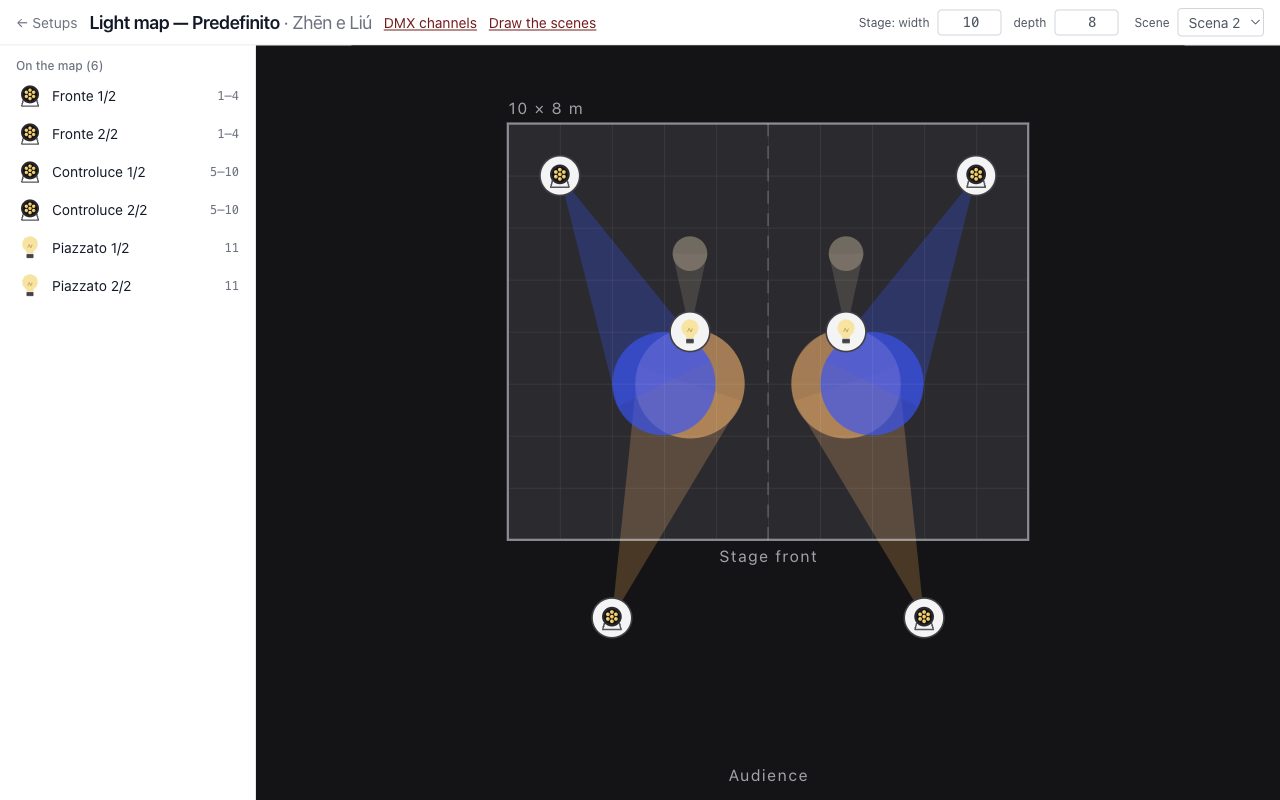
The map is only a drawing: it sends nothing to the lights. Every fixture is drawn with its beams, as they are in its card (rings, grid, strip…): lit in the colour of the scene on the scene desk and in the Control booth, dark here until you choose a scene. The shape of the body and the icon in the corner tell the type: round for PARs and lamps, rounded square for moving heads and scanners, square for panels, long for bars and strips. A model without beams described has only its icon.
Putting lamps on the map
First you assign the DMX channels: only then do the lamps arrive here, in the list on the left.
- Drag a lamp onto the stage, or click it and then click the spot where it goes.
- At the top, enter the stage measurements, width and depth.
- To move it, drag it.
To name a lamp, select it and type at the top of its panel. Paired lamps are placed one by one and each has its own name, PC 1/2 and PC 2/2 to begin with: if you leave it empty, that one comes back. If the positions come from a venue, you change the name there. A lamp's name appears when you move the mouse over it.
Aiming
Click a lamp and choose Aim it, then drag the yellow dot to where the light should land. You'll see the cone and the pool of light.
The design
The panel on the right has position and aiming in metres and, in the setup, the design options that the model allows:
- zoom, a slider in degrees that widens or narrows the pool of light as you drag it; Remove goes back to the model's beam angle. It is there only if the model has a manual zoom;
- gel, with its code and colour;
- barn doors and shutters, as a percentage for each side, which cut the pool of light.
The design applies to the whole show: these are things you adjust by hand on the fixture.
Viewing a scene
In a setup's map, you can choose a Scene at the top: each lamp shows the colour and intensity it receives in that scene. To change them, use Disegna le scene (Draw the scenes).
In a setup linked to a venue, positions are changed in the venue; aiming and design stay with the show.
Zoom
At the bottom right of the stage you'll find + and −, the percentage, which goes back to the whole stage, and the hand, which moves the view. You can also zoom with the wheel or a trackpad pinch, and move with the middle mouse button. Lamps keep the same size on screen and spread apart: that's the way to separate crowded ones.