Venues
A venue is a theatre you work in: name, city, notes, and the tools and lights you find there. You prepare it once, and every show that goes there inherits it.
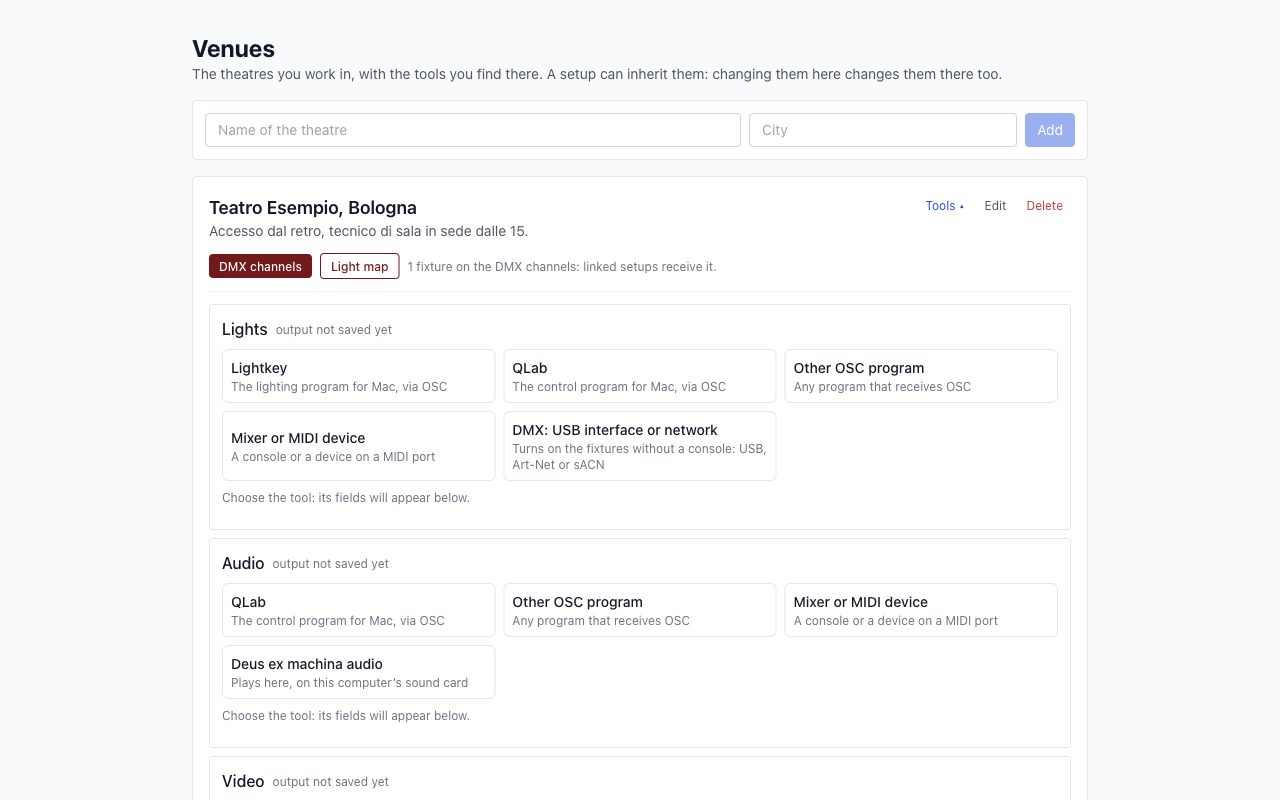
Creating a venue
Open Go → Venues, or the same item in the bar at the top. Each theatre is a card, with its city, stage and tools. Choose New theatre, enter the name and city, the stage measurements in Stage width (m) and Stage depth (m), and choose Add: the theatre's page opens. You can change the measurements later, with Edit or from the map, and they reach the linked setups. With Edit you add the notes, for example the access and the house technician.
What it contains
Tap a theatre's card to open its page. From the top:
- name, stage, notes and the setups that use it, with Edit and Delete;
- DMX channels: which lights there are and on which channels. See DMX channels. Next to it, Light map: where they hang on the stage. See the map. Under the grid of channels, Groups: the fixtures that go together, such as “Backlight”; you choose them by tapping them in the order you want.
- Tools: what lights, audio and video go out through.
- Stored cues: the cues already stored in the theatre's mixer. They are read from a Lightkey project with Import lights from Lightkey, or from an open QLab with Read from QLab.
Linking a setup to a venue
When you link a setup to a venue, it receives tools, channels and positions. Every change made in the venue reaches the linked setups on its own.
| Comes from the venue | Stays with the show |
|---|---|
| Tools | Scenes and levels |
| DMX channels and number of lamps | Lamp aiming |
| Positions on the map and stage measurements | Design: zoom, gels, barn doors, shutters |
| Groups of fixtures | Palettes |
In a linked setup, channels and positions can only be viewed; you change them in the venue.
If you remove a light from the venue, the program warns you if scenes use it. If you confirm, it also disappears from those scenes.
If you delete a venue, the linked setups stay, with what they had.