Drawing the scenes
The scene desk lets you adjust scenes while looking at the stage. You open it with Draw the scenes from the Allestimenti (Setups) page or from the map. It works when the lights of that setup go out through the internal DMX; with Lightkey or a console, you prepare the scenes there.
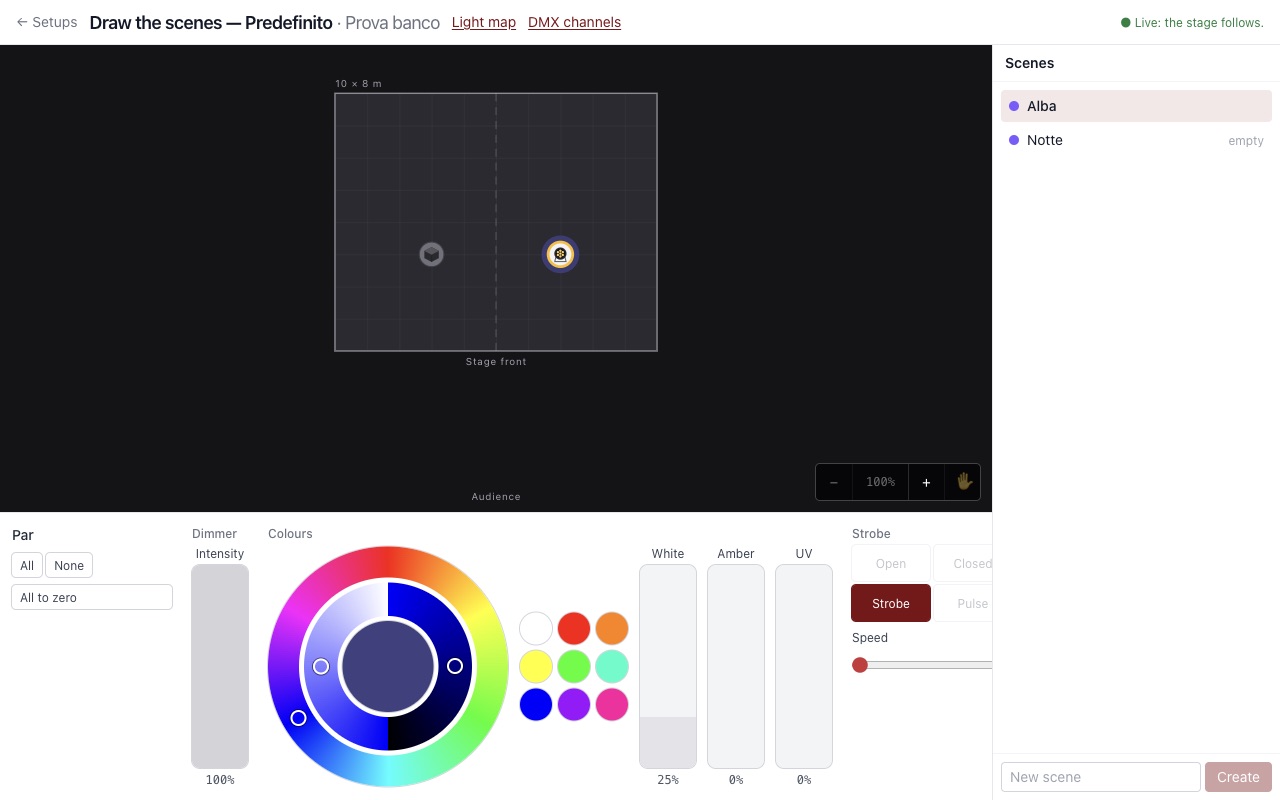
In the centre is the stage, with the scene lit. On the right, the list of scenes. Below, the controls.
Choosing the lamps
| What you do | What happens |
|---|---|
| Click a lamp | You select that one |
| Shift, Cmd or Ctrl plus click | You add to or remove from the selection |
| Drag a box on the stage | You select all those inside it |
| Click the floor, or Esc | You clear the selection |
| Cmd or Ctrl plus A, or All | You select all of them |
Paired lamps are selected together, because they are a single block. Lights not yet on the map are in a strip below the stage.
Adjusting
The controls apply to all the selected lamps:
- Intensity: how bright the light is.
- The colour wheel: the outer ring is the hue. In the inner ring, the right half darkens the colour and the left half moves it towards white. The circle in the middle shows the chosen colour, and next to the wheel you have ready-made colours.
- A slider for each colour the wheel doesn't make, such as White, Amber and UV.
- Strobe, if the lamps have it: Open, Closed, Strobe and Pulse. You can only choose the modes the model really has, and below them you set the speed. With a profile written by hand, or imported before this version, you only get a slider: import the profile again to get the buttons.
- Maker's channels: a slider for each channel with its name, such as an automatic programme.
- Aim, for moving heads: in the square, horizontal is pan and vertical is tilt. To centre brings the lamp back to facing forward, Don't move takes the aim out of the scene. Next to it is Zoom.
- Wheels, for spot heads: the Colour wheel as coloured tiles, the Gobo wheel and the Prism as buttons with their names. Each chosen lamp goes to the position with the same name. None takes the wheel out of the scene, which brings it back to open. The positions come from the model's profile; if there are none, a slider remains. A shaking gobo or the spinning wheel (Spins →, Spins ←) has the Speed slider below, from slow to fast, which stays inside its position.
- Beam: Zoom, Focus, Iris, Frost and the rotation and angle of gobo and prism, only if the lamps have them. A scene that doesn't name them brings iris, frost, rotations and angles back to zero; zoom and focus stay where they are.
- If the lamp mixes colours with cyan, magenta and yellow, the desk's colour wheel moves those.
The drawn stage doesn't follow pan and tilt: to see them, look at the real lamp.
If the selected lamps have different values, the slider shows misto (mixed). If the dimmer is at zero the colours don't show, and the program says so.
All to zero turns off the whole scene. Copy from scene… starts from another scene.
Saving
A modified scene lights up yellow, with two buttons:
- Update writes the changes.
- Cancel goes back to how it was.
When you move to another scene, the changes stay pending, marked by a dot. Remember to update them.
If you leave the scene desk with the Go menu, changes you haven't updated are lost without warning. Update before you leave.
To make a new scene, type the name at the bottom of the list and choose Create: it starts from what is lit at that moment.
Sequences
A sequence is a scene that moves by itself: a dawn in three stages, a flash, a storm. It is made of steps, and each step is a picture like a scene.
Below the stage there is the Steps strip. A still scene has a single step: + Step copies it right after, and the scene becomes a sequence. Tap a step's number to adjust it on the desk: the stage shows that step. A dark step, with its number on a black background, is blackout: it is useful for flashes.
For the chosen step:
- Fade is the time to get there from the previous step, in seconds;
- Duration is how long it stays, after the fade;
- the arrows move it left or right, Remove step removes it.
Each step lasts at least 0.1 seconds, fade and duration together.
For the whole sequence:
- Loop starts again from the first step until the next cue arrives; Once stops on the last step;
- Speed speeds up or slows down all the times together: at 200% everything lasts half as long.
Try the sequence runs it on the stage without saving it; Stop goes back to the chosen step. You save it with Update, like a scene. Removing steps down to a single one turns the sequence back into a still scene.
In the show the sequence starts with its cue. The cue's fade leads to the first step; without one, the first step's fade applies. In the setup's scene table a sequence is summed up with its number of steps, and it can only be changed here.
Effects
An effect is a calculated movement that runs by itself on some fixtures, on top of the scene: a wave running along a row of PARs, a chase, changing colours, a candle. The scene stays as it is; the effect moves only its own fixtures.
Choose the fixtures on the stage, in the order you want the effect to go from one to the next, then tap + Effect in the Effects strip and the type:
- Wave: the intensity rises and falls like breathing, between Minimum and Maximum;
- Chase: the light goes from one fixture to the next; Fixtures together says how many are lit, then Forward, Backward or Back and forth, and Soft to fade them up and down instead of jumping;
- Colours: the chosen colours one after the other, or the Rainbow; + Colour adds one, Sharp jumps instead of fading;
- Flicker: the intensity changes at random but softly, differently for each fixture, like a flame.
The fixtures of the effect are numbered tiles: tap one and move it with the arrows, or Remove from the effect. Add the chosen fixtures puts the ones chosen on the stage at the end.
The timing is written in Seconds (One cycle) or in BPM with the Beats per cycle. Offset says how far apart the fixtures are: at 0 they all go together, at 100 the wave travels the row once per cycle. Remove effect removes it.
Wave, chase and flicker move the intensity. A fixture without a dimmer, such as an LED PAR, needs a colour in the scene, or the effect does not show: the desk tells you.
Effects run on the drawn stage and, if the top reads Dal vivo, on the fixtures too. They are saved with Update. On stage they come in and go out with the fade of the cue. A scene can have up to eight effects, even on top of a sequence.
Groups and palettes
A group is a set of fixtures with a name, such as “Backlight” or “Front”. Choose the fixtures on the stage, in the order you want, and tap + Group in the Groups strip. From then on one tap on the group picks its fixtures again.
As long as the chosen fixtures are those of a group, the group stays lit and what you set goes to the group, not to the fixtures one by one. If you later add a fixture to the group, it joins every scene made on the group with the same values. If you touch one fixture alone, it leaves the group only in that scene and only for what you touch.
A palette is a colour, a position or a beam with a name, to use again. In the Palettes strip choose the kind, Colour, Position or Beam, set the chosen fixtures and tap + Palette. One tap on a palette gives it to the chosen fixtures, or to the group.
- A Colour palette works for any fixture that changes colour: the program translates it for each fixture. Fixtures with a gel do not take it: they keep the gel chosen on the map.
- Position and Beam remember the values of the fixtures you saved them with. A fixture the palette does not know does not change, and the desk says so.
If you change a palette, every scene that uses it changes. Tap Edit, then the palette: you can change its colour, Rename and Update with the chosen fixtures. The same goes for groups. A group or a palette used by a scene cannot be removed: Remove group and Remove palette stay off, with the list of scenes next to them. Done editing goes back to normal taps.
In the effects, with the group chosen, “Add the group” puts the whole group among the fixtures of the effect: the effect runs through it in the order of the group and follows whoever joins it.
Groups and palettes belong to the setup: “Duplicate” copies them, and a venue can give its groups to the linked setups. Scenes are saved as always with Update.
The stage follows
If you read Dal vivo (Live) at the top, every movement shows immediately on the real lights. When you leave the scene desk, the stage goes back to how it was.
If the stage can't follow, the line at the top says why: show running, setup not active, or engine off. You can still adjust and save.
What it doesn't do yet
- Groups and palettes are given from the scene desk, not from the retouch in the Regia. A palette or a group changed during a show takes effect from the next performance.
- Smoke can't be adjusted from scenes yet.
- Effects move only intensity and colours: not yet pan and tilt, nor gobos and zoom.
- A sequence doesn't wait for GO between steps, and doesn't go back and forth: it starts again or stops.
- A scene is always a complete picture: anything it doesn't name goes to zero. Pan, tilt and zoom are the exception: they stay where they are. Panic also turns the lamps off without turning them.
- To rename or delete a scene, use the scenes window in the script editor.