Setups
A setup is the show adapted to a theatre: the same script can have several, and only one is active. You get there from the script editor, with Setups.
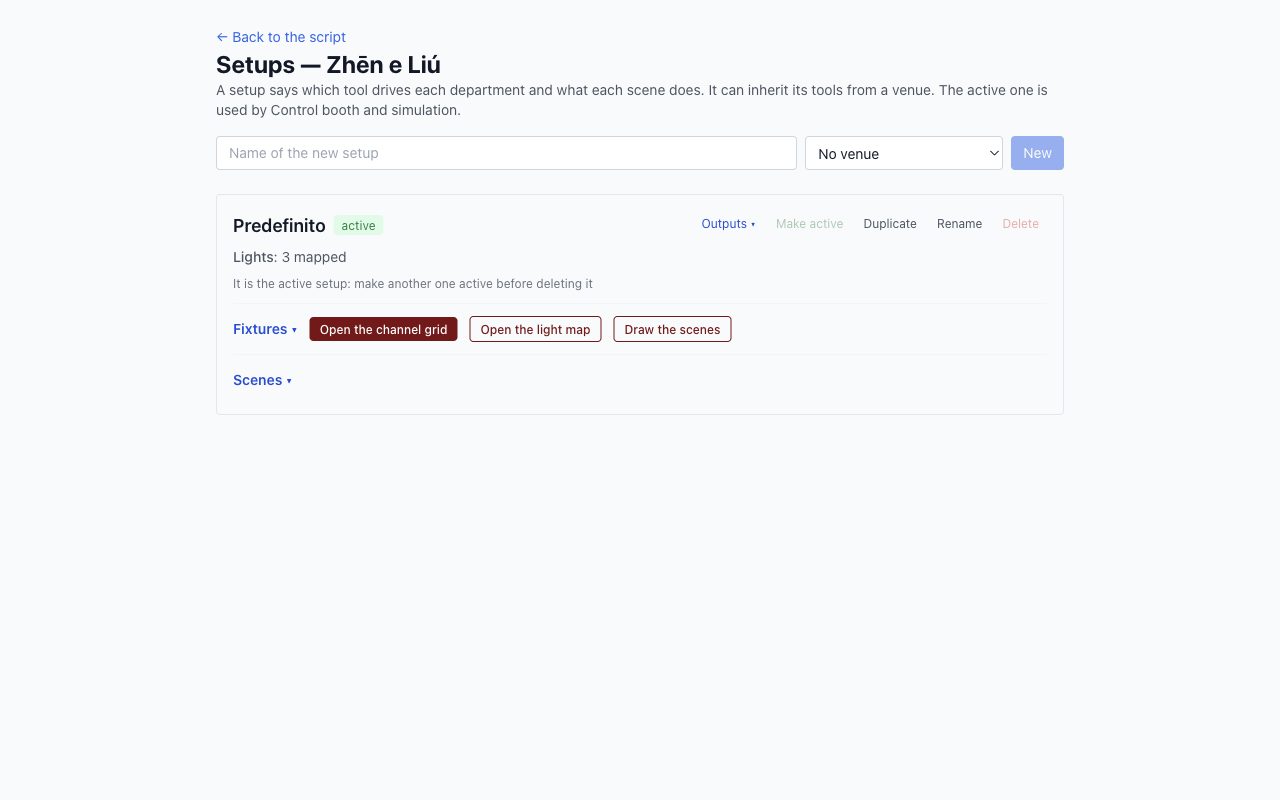
From here you can create a new one, duplicate one with all its channels, link it to a venue and make it active. The engine loads only the active one.
Outputs
In Outputs, choose the tool that runs each department. Only the fields that tool needs appear; then save and test the connection.
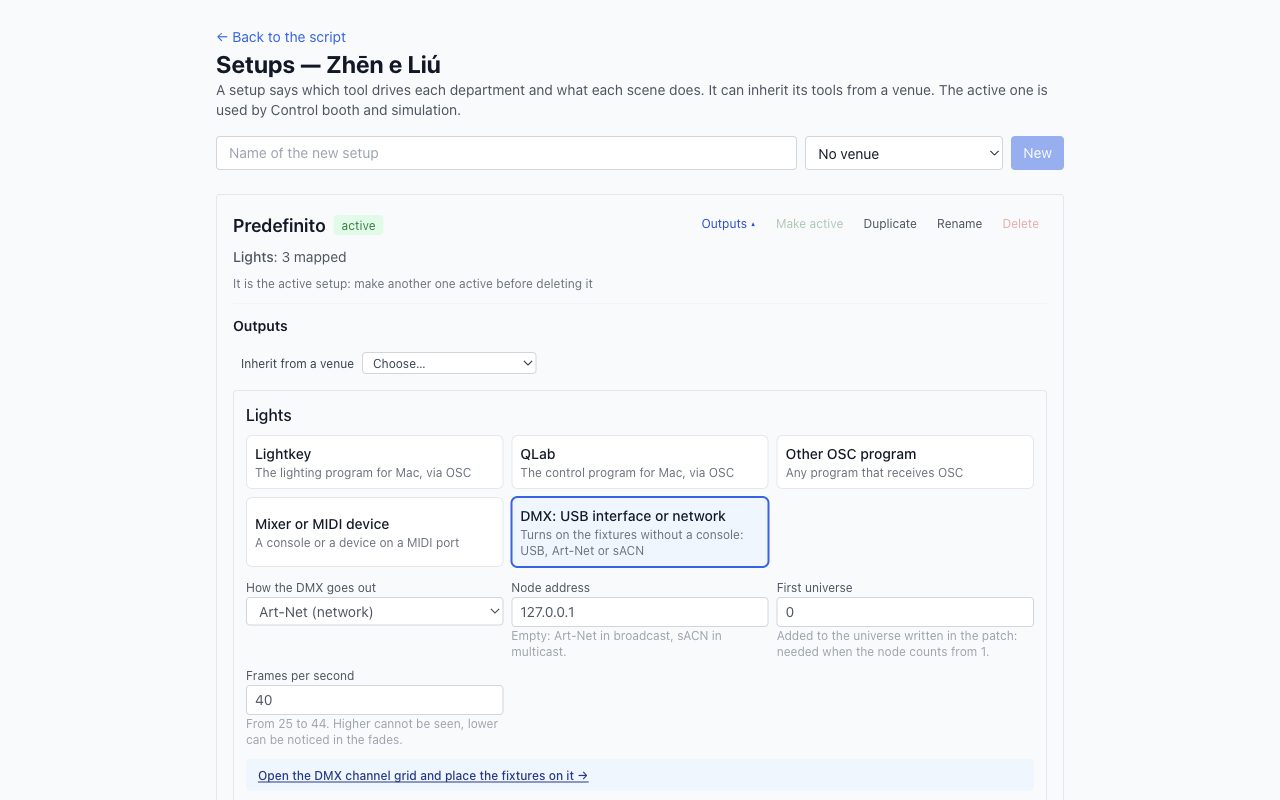
| Tool | Departments | What you need |
|---|---|---|
| DMX: USB interface or network | Lights | A DMX interface or an Art-Net or sACN node |
| Lightkey | Lights | Lightkey open, on the same computer or on the network |
| Deus ex machina audio | Audio | Nothing: at most you choose the sound card |
| Deus ex machina projector | Video | A second screen on Extend |
| QLab | Audio, video | QLab 5 |
| Mixer or MIDI device | All | The MIDI port |
| Other OSC program | All | A program that receives OSC |
Lightkey appears among the outputs only if it is installed on this computer. Without Lightkey, the lights of a new script go to DMX.
Choosing the DMX interface
| Interface | When to use it |
|---|---|
| Enttec DMX USB Pro | Shows: the interface handles the signal timing |
| Art-Net or sACN node on the network | Shows, and when you need more than one universe |
| Enttec Open DMX USB | Rehearsals: the computer handles the timing, about 33 frames per second |
- Connect the interface's output to the DMX IN of the first fixture, then continue from DMX OUT to the next one.
- On the fixture, choose DMX mode: the display should read something like
A001. - Close Lightkey: it takes exclusive control of the USB interface.
Scenes in the setup
In Scenes, each scene has its action: DMX levels, a file, an address. The status column shows which ones are missing. As long as any scene has no action, the show won't start, and the page says which one.
- Match by name fills the empty scenes with the files or cues that have the same name.
- Test runs the scene; next to it are Blackout for the lights and Black for the projector.
- With the internal DMX, scenes are better prepared from the scene desk: draw the scenes.
The cues of each theatre
A theatre with little equipment cannot do everything: a moving head that follows the actor like a spotlight may simply not be there. That setup can then have cues of its own, without touching the script.
- In the script editor, when there are at least two setups, choose the theatre next to the departments. All theatres shows the common cues; a theatre shows its own.
- Tap a cue: Leave out in this theatre removes it only there, and the next cue starts from where the one before arrived. Put back in this theatre brings it back.
- Phrases in this theatre… gives the cue other phrases only there; Back to the common phrases undoes them.
- With a theatre chosen, select the text: the new cue applies only in that theatre.
- A common cue is changed from All theatres. The bubble says in which theatres it is left out or has other phrases: there it stays as it is.
On stage, the cues of the active setup fire. When you duplicate a setup, its cues come along; in the project folder they are in teatri/.