The script
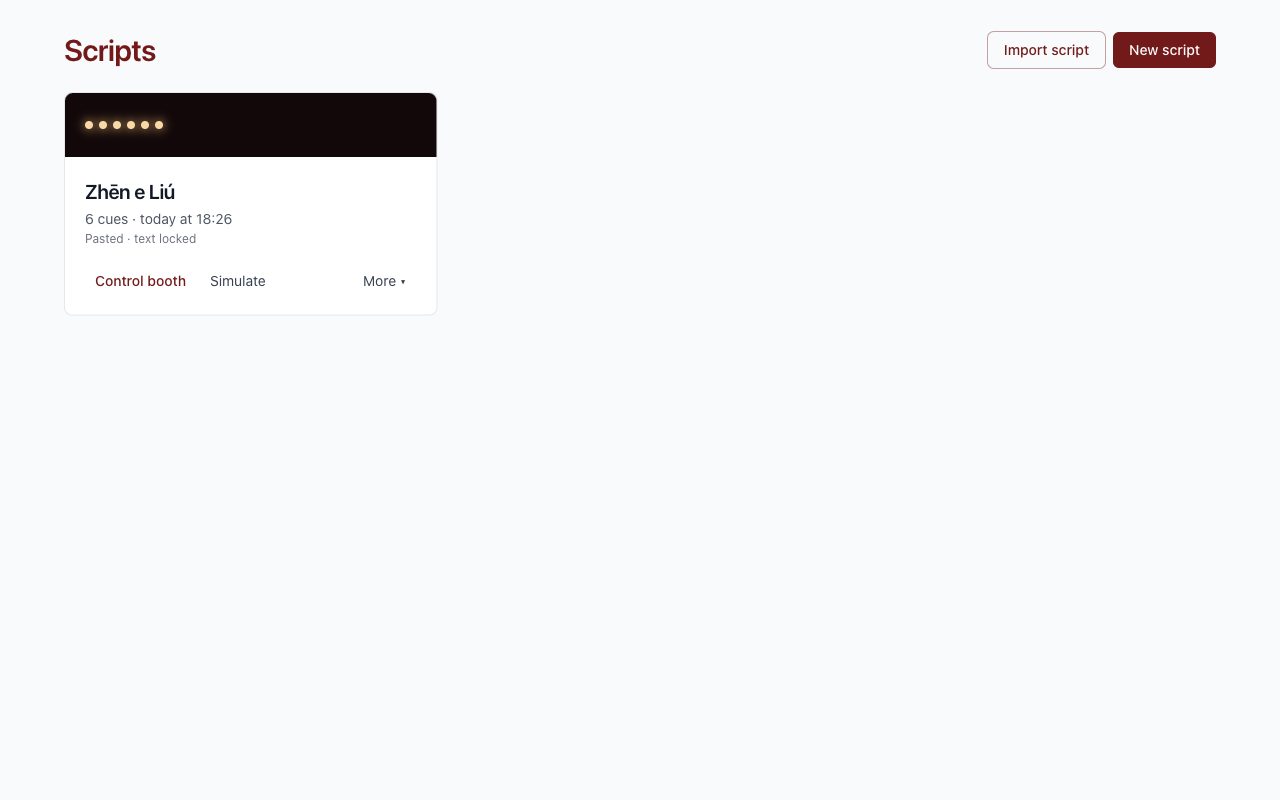
Loading the text
- From the list, choose New script.
- Choose Upload file for a PDF, a DOCX or a TXT, or Paste text.
- Check the extracted text: this is the moment to correct it.
- Choose Open editor.
Also choose the Script language: the one the actors perform in, which can differ from the program's. It decides which speech model listens to them and how numbers in phrases are read. You can change it later, from the ⋯ menu at the top of the editor. In phrases, write numbers that can be said in several ways, such as years, in words, the way the actor will say them. The model for that language has to be downloaded before the show.
The text locks when you create the first cue, so the points you marked stay where they are. Correct it before that.
Marking the cues
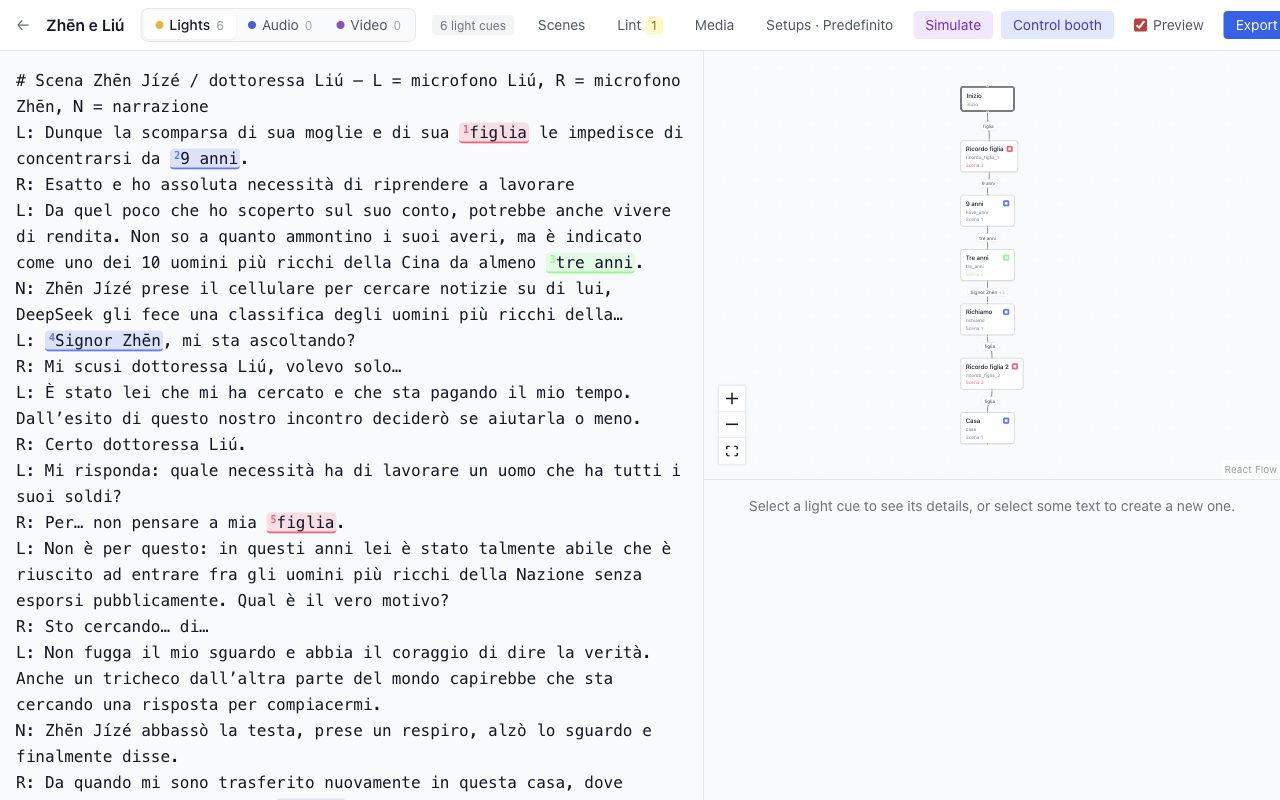
At the top, choose the department: lights, audio or video. Then:
- In the text, select the phrase that should start the cue.
- Click the button that appears next to it: Light cue here, Audio here or Video here.
- Check the phrase and add variants, meaning other ways the actor might say it.
- Choose the destination scene, new or existing.
- If needed, enter the delay (how long to wait after the phrase) and the fade-in (how long the entrance lasts), in seconds.
- Save.
As you type, the program colours the other places where the phrase appears in the text. If it's orange, the phrase appears before the point you chose and the cue would fire early: choose a longer phrase.
The same line can have one cue per department. The dotted underlines are the other departments' cues: click the symbol next to one to switch to that department.
The graph and the checks
On the right, the graph shows the points of the show and the cues that connect them. If you click an edge, the text scrolls to its phrase; if you click a phrase, the graph moves to its edge and a box with the cue's details opens under the phrase: Edit opens the rest.
The ⋯ menu at the top holds the tools you need less often: Preview, Lint, the setups, Simulate and the exports. Control booth is outside instead, next to Media: it is where the show goes on. When lint finds problems, their number appears on the ⋯.
The preview shows where each phrase would really fire, which may not be where you marked it. An orange mark means it fires early or late, and a phrase struck through in red never fires.
Scenes
A scene is a name with a colour and a note. What it actually does is decided by the setup, because it can change from one theatre to another.
Taking the script to another computer
In the list, Export saves the script with its scenes, setups and channels. If the script has files, the button becomes Export with files and puts them inside. On the other computer, choose Import script.
Then check the projector's screen, which changes from one computer to another. The interface's USB port changes too: leave it on «Automatic» and the program finds the connected DMX interface by itself.
The project folder
Every script has its own folder, which the program writes again at every save. In the app it is in Documents, inside “Deus ex machina”. In it you find the script file (<title>.deus.json), the sounds in audio/, the videos in video/, the images in immagini/ and one file per theatre in teatri/, with the names you uploaded them with.
To see it, choose Show in Finder (on Windows Show in File Explorer) from the ⋯ menu of the editor or from More in the list. If it cannot be written, for example because the disk is unplugged, a notice appears under the editor bar: the changes stay in the program and the folder is updated at the next save. The show never stops because of the folder.
The folder can be copied as it is and opened on another computer with Open project…, in the list of scripts or from File → Open project…. If the project is already there, the one in the folder replaces it, after a backup of the database. The QLab passcodes are not in the folder: on the same computer they stay, on another one they have to be typed again.
Changes made by hand in the folder count only when you open it again: as long as the script is in the program, the program writes the folder. A file put into audio/, video/ or immagini/ joins the library when you open the folder again.
The folders of new scripts go where Configuration → Projects folder says, and you can change it there. To move a project you already have, move its folder and open it again with Open project…. Deleting a script from the program does not delete its folder.