Fixture types
A fixture type is a model of light or device: it says how many channels it takes up and what each one does. It applies to all theatres, so you prepare it once. You only need it if the lights go out through the internal DMX.
It opens from Go → Fixtures.
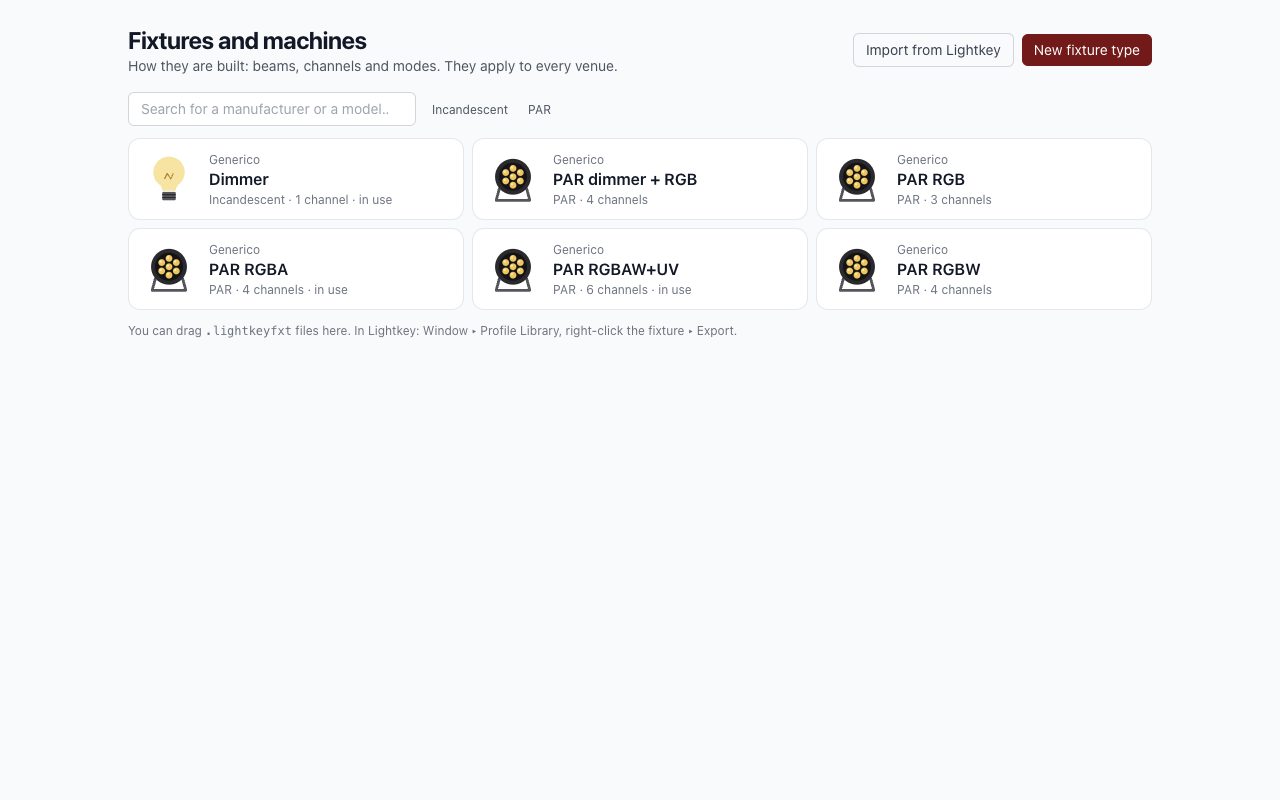
Out of the box you get a dimmer and the most common PARs. There are several ways to add more.
Creating a new one
Choose New fixture type and follow the steps.
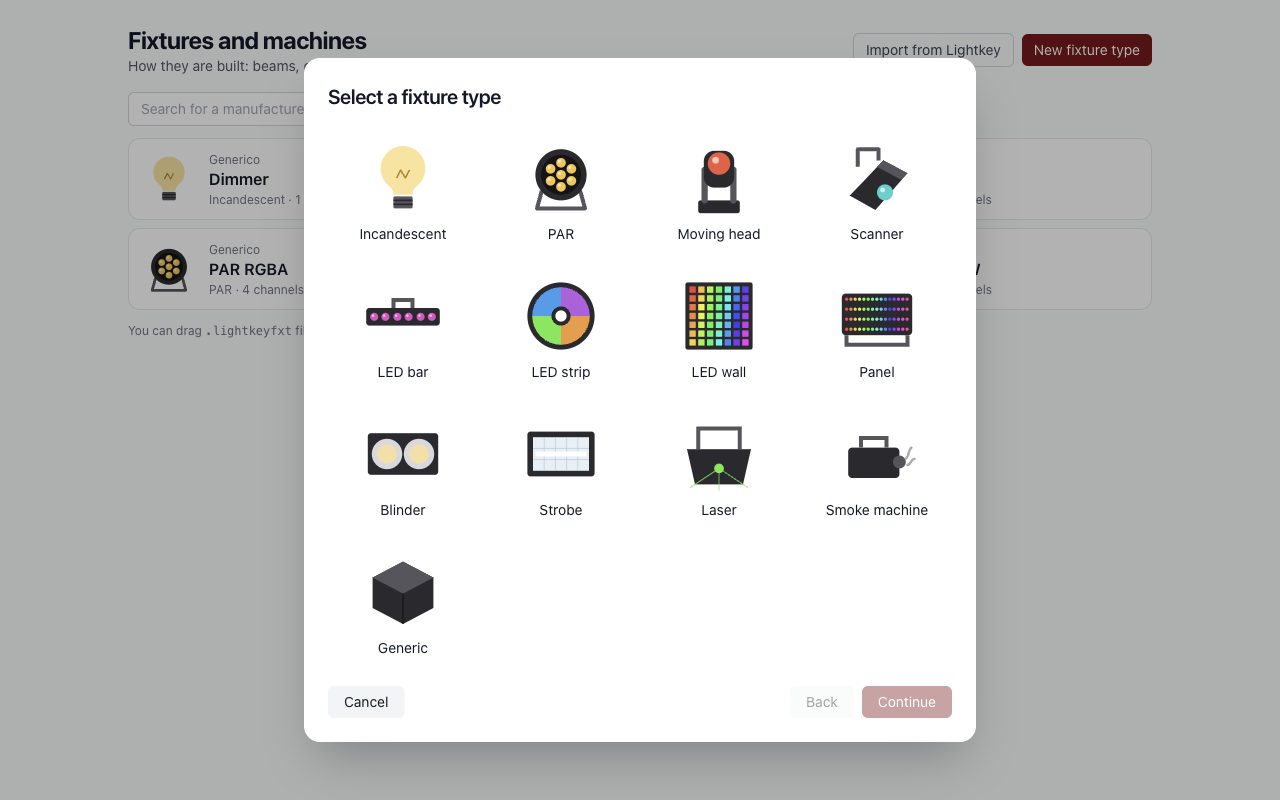
- The type: incandescent, PAR, moving head, smoke machine and others. Everything the program asks you afterwards depends on the type.
- The information: manufacturer, name and the characteristics of that type. For an incandescent light, for example, power, manual zoom, shutters, barn doors and gel.
- The light beams, for models with more than one: how they are arranged and what shape they have.
Characteristics such as zoom, shutters, barn doors and gel then appear in the design on the light map.
From the manual, with Claude
If you have the PDF of the fixture's manual, choose From the manual, with Claude. The button is only there if the program is connected to the service that reads manuals, and it needs the internet.
- Choose the PDF, then Pay. Paddle's checkout opens in the browser; Paddle sells on behalf of Deus ex machina, and you pay by card or PayPal.
- After paying, go back to the program. Claude reads the DMX channel table, usually in a minute or two. You can close the window: the reading in progress shows up again at the top of the page, with Open.
- Check the proposal: manufacturer, name, type and, for each mode, what every channel does and what the manual calls it, with the page it comes from. Channels in yellow are those where the manual was unclear: check them on the fixture.
- To see whether the manual was read correctly, choose Try on stage next to a mode. On the fixture, set the address and the mode the program tells you. Then light it with the ready buttons (white, the colours, strobe, Off) or with one slider per channel. The light goes out through the DMX interface of a script's active setup: you need a script with the lights on the internal DMX, and no show running. When you end the test, or close the window, the fixture goes dark and the stage goes back to how it was.
- Keep the modes you need and choose Add to library. Those already there are skipped.
If the reading fails (for example, Claude finds no channel table), the payment is refunded by itself. The manual goes to Claude, by Anthropic, to be read, and is then deleted, unless you tick It may be published: then, once the administrator approves it, the manual can be downloaded from the fixture's page in the site's catalogue. In the Source filter these models are Read from the manual.
From the catalogue
The site's catalogue gathers the models others have already written, checked by a moderator before they go in. With From the catalogue you search by manufacturer, model or type; Import puts the model into your library, one mode per profile.
When an imported model changes on the site, its card in the list offers the update: you see the differences channel by channel, and nothing changes until you press Update. A profile already in the patch is updated only if its number of channels stays the same.
After writing a profile, or taking it from the manual with Claude, the program asks whether to send it to the catalogue: Send to the catalogue sends it in the name of your account, and it needs the computer activated in Configuration → Licence, free is fine too. You also find it in the model's sheet, for later. It goes into the catalogue when a moderator approves it: an e-mail tells you.
The model's sheet
Clicking a model opens its sheet. There you find the data, the beams and the Channels: for each channel, what it does and its range, if it has one.
The same model can have several modes, for example 6 or 12 channels. With Add a mode you create another one.
The mode must match the one set on the real fixture, or the colours will come out wrong.
For the Colour wheel, the Gobo wheel and the Prism, the channel details (tap its number) hold the positions: from and to, in bytes from 0 to 255, the name and, for colours, the colour. + Position adds one. Each position is Fixed, Shaking (a gobo that trembles), Spins → or Spins ← (the wheel turning by itself): in the last three the range is a speed, and Fast first says it goes from fast to slow. Scenes pick them by name. When you import from Lightkey they come by themselves: colours take the name of their hue, gobos a number, and shaking gobos and the spinning wheel come too.
Importing them from Lightkey
The buttons to import from Lightkey appear only if Lightkey is installed on this computer. If you use Lightkey, export the fixture's profile in Lightkey, then drag the .lightkeyfxt file onto this page or choose Import from Lightkey.
If Lightkey is installed on this Mac, Import the whole Lightkey library appears as well: it takes in one go every profile that comes with Lightkey, about twenty-six thousand modes, in a few minutes. You can stop it and run it again: the profiles already there are left alone. With many profiles the page shows only part of them: search, filter or choose Show more.
On the left are the search and the filters, as in an online shop: type, manufacturer, channels, functions (RGB colours, movement, zoom…), source and use. Next to each entry is how many models you would find by choosing it, and the number follows the filters already chosen. Within a group the entries add up: PARs and bars together. Across groups they all apply: PARs, and from that manufacturer. The chosen filters sit above the list and are removed with the ×. Sort by orders the models by manufacturer, by model or from the simplest.
The star ☆ on each model puts it among the Favourites, with all its modes; another tap takes it off. In the filters, Favourites only keeps just those in the list. In the DMX channels the favourites are at the top of the catalogue. Next to the star, the magnifying glass searches for the model on the internet, in the browser, with the manufacturer's name and the model's. Built-in models don't have it.
The built-in models can't be changed: you duplicate them with Duplicate the model. A model used in a theatre can't be deleted, and the program tells you where it's used.