Simulation and Regia
The simulation
Before going on stage, test the script without actors. From the editor, open Simulation.
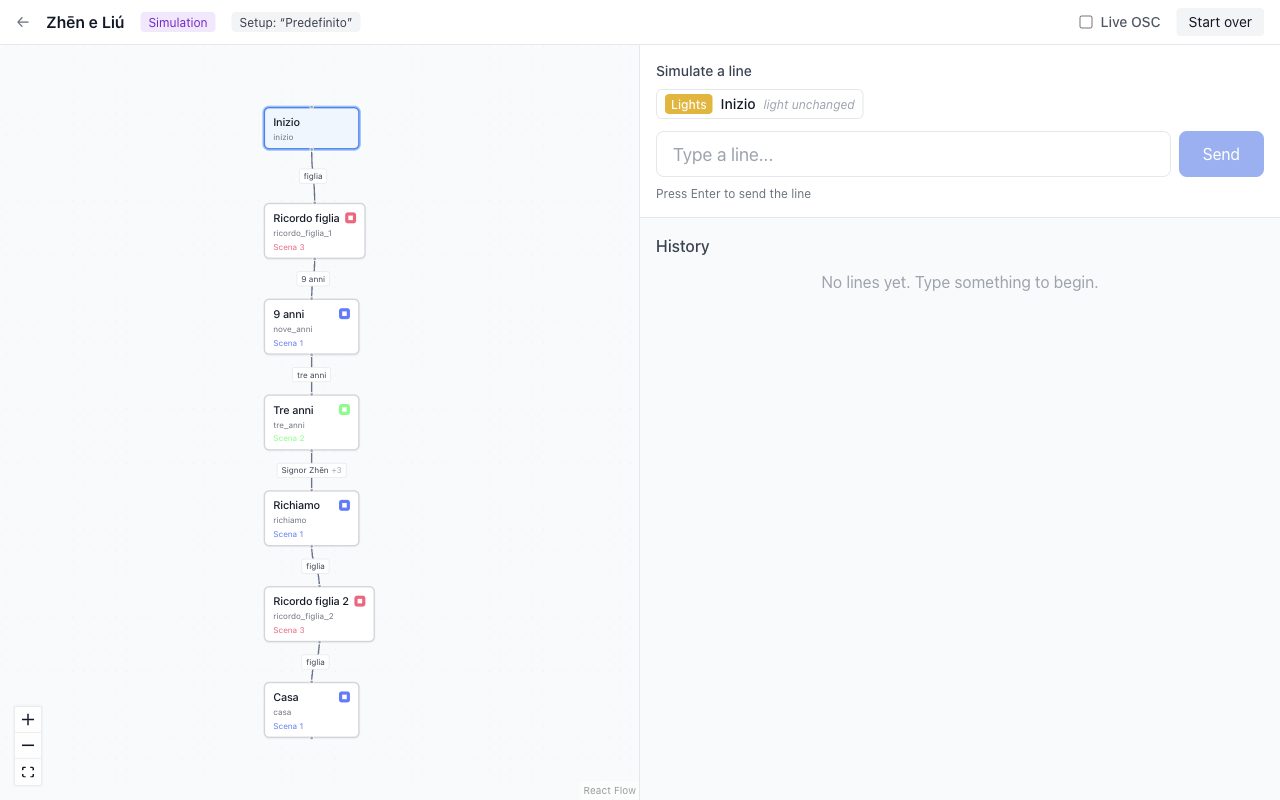
Type a line the way an actor would say it: all the departments hear it, as they would on stage. At the top you see where each department is, and in the history what has fired. If you click a point on the graph, that department restarts from there. Start over takes everyone back to the beginning.
Regia
In the editor press Control booth, at the top next to Media. This is where you start the show.
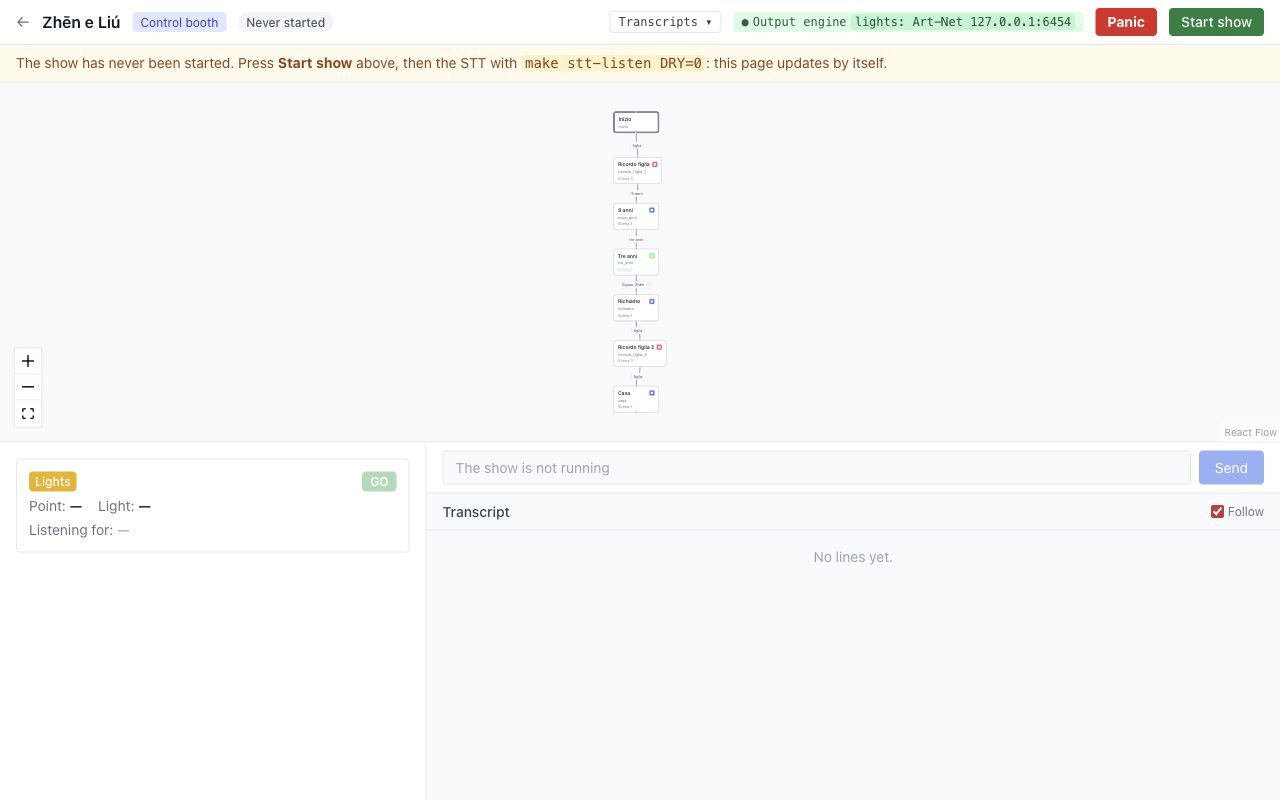
Choose Start show. You can choose the departments, and with Test without outputs run everything without sending commands: this is the way to test a whole performance. As long as any scene has no action the show won't start, unless it is a test without outputs.
At the top there is one row per department: the point it is at and the two that come next, with the phrase that fires each cue. To see the other points, drag the row; after ten seconds it goes back to the current point by itself, or at once with Back to the current place.
Below is the script, which follows the actors. A black mark shows where they have got to, the words heard are underlined in green, what they skipped is struck through and what they said off script appears in yellow where they said it. The phrases of the next cues are in bold. The text scrolls by itself; if you scroll it by hand it stops following until you press Follow. The show's notices appear at the bottom.
At the bottom, what the microphone hears scrolls along one line, one word after another. A silence of at least one second appears as a box with its length; the current one is yellow and grows until somebody speaks. Download, next to it, downloads the transcript of this performance.
If the lights go out through the internal DMX, the Stage button opens, next to the script, the stage seen from above, with the lights as they are at that moment, fades included. The drawing comes from the light map and the levels of the scenes. Fixtures that are not on the map are at the bottom, with a dot of their colour. In a run without outputs the stage shows what would light up.
If the projections go out through the internal video, below the stage there is the Projection: the audience's screen, small and silent, with the videos at the right point. On a narrow screen stage and projection sit below the script, one at a time.
Next to it are the Levels: how loud the internal audio is, left and right, and how much the microphone hears. Green is fine, yellow is loud, red is too much; the white line holds the peak for a second. If the microphone is grey, with “no signal”, nothing is coming in: check that it is plugged in and that it is the one chosen.
Retouching the lights during a performance
If the lights go out through the internal DMX, open the Stage and tap the pencil next to the name of the scene: the scene desk opens full screen, over the Control booth, with the lit scene at the top. While the desk is open the lights are detached from the script: the lines do not change them, while sound and video carry on.
Tap a lamp on the stage, or drag a box to choose more than one, and set dimmer, colours, strobe and aim. Every change reaches the lamps at once and stays on stage until the next lighting change, which arrives as programmed. Undo retouches brings the scene back as it is.
Two buttons keep a retouch:
- Save in the scene overwrites the lit scene, for every performance, in the setup in use;
- Save as a variant creates a new scene, for example “Scene 4 var. 1”, which from the next performance takes the place of the scene at this point of the show. The other points that use the previous scene do not change.
The stage does not go dark or flash, neither when saving nor when closing. Close re-attaches the lights to the script; if the show stops, the desk closes by itself. In a run without outputs the desk works just the same, but nothing reaches the lamps.
If a sequence is on stage, «Sequence: step 2 of 5» appears next to the engine lights. Pause stops it where it is, even halfway through a fade, and Resume starts it again from there; − and + change the speed ten by ten. They last until the next cue and are not saved. A retouch over a sequence can only be saved with Save as a variant: the variant is a still scene, with the lights of that moment.
A scene with effects shows «2 effects» in the same place, with the same buttons: Pause, Resume and the speed apply to the sequence and to the effects of the scene together. A retouch over an effect stops the effect only on the fixtures you touch; once saved, the scene keeps its effects.
Retouching the volume during a performance
With the Deus ex machina sound or projector, Volume over time in the Control booth opens full screen what is playing now: for each sound the point that started it, the scene, how long it has been playing, and its curve with a playhead at the current time. Sound and video keep following the script.
Move, add or remove keyframes as in the editor: the difference is heard at once in the house, and it applies to this time only. Save on the point keeps the curve for the next performances; Back to the point’s curve puts back the previous one. A finished sound stays in the list, so it can still be saved.
If something goes wrong
| What happens | What to do |
|---|---|
| The actors skip some lines | Click a later point on the graph and confirm: the department jumps there. You can't go back |
| A phrase isn't recognised | GO on the department's row starts the next cue |
| Everything must stop immediately | Panic, with two clicks or a long press: blackout, silence and black |
| Recognition stops | The Regia page tells you: the show continues by hand |
Panic really does turn everything off. The audio fades in half a second, so there's no bang in the house.
One indicator light per department tells you whether the output is responding. During a show the scene desk does not move the lamps: to retouch the lights there is the pencil next to the scene in the Stage, above. Addresses and messages sent, for whoever has to understand a fault, are turned on from the ⋯ menu with Technical details.
After the performance
From the ⋯ menu of the Regia, Transcripts downloads a page for each performance, with everything the actors said and the cues that fired. It opens in the browser and can be printed. At the bottom is the script as it was said, rebuilt once the performance is over: a line said out of order goes back to its place.
Before a real performance, always do a whole test run.
The free board
If something happens on stage that the script doesn't expect, you can leave it and run everything by hand.
- While the show is running, in Control booth press Detach from the script. From then on, voice fires nothing.
- All the scenes with an action appear, by department: fire whichever you want, in any order, even backwards. Pressed twice, it goes twice.
- To go back to the text, choose which point each department resumes from, even an earlier one, and press Reattach to the script. If you choose a different point, its output goes at once.
Panic works as always.
For an evening without lines, such as a concert or an event, create a script from the No text tab of New script: it has no text or speech recognition. You create the scenes in Setups, then fire them from Control booth once the show is started.