Sounds and video
The library
Each script has its own sounds, videos and images. You upload them from the Media page, which opens from the script editor, by dragging the files onto the page.
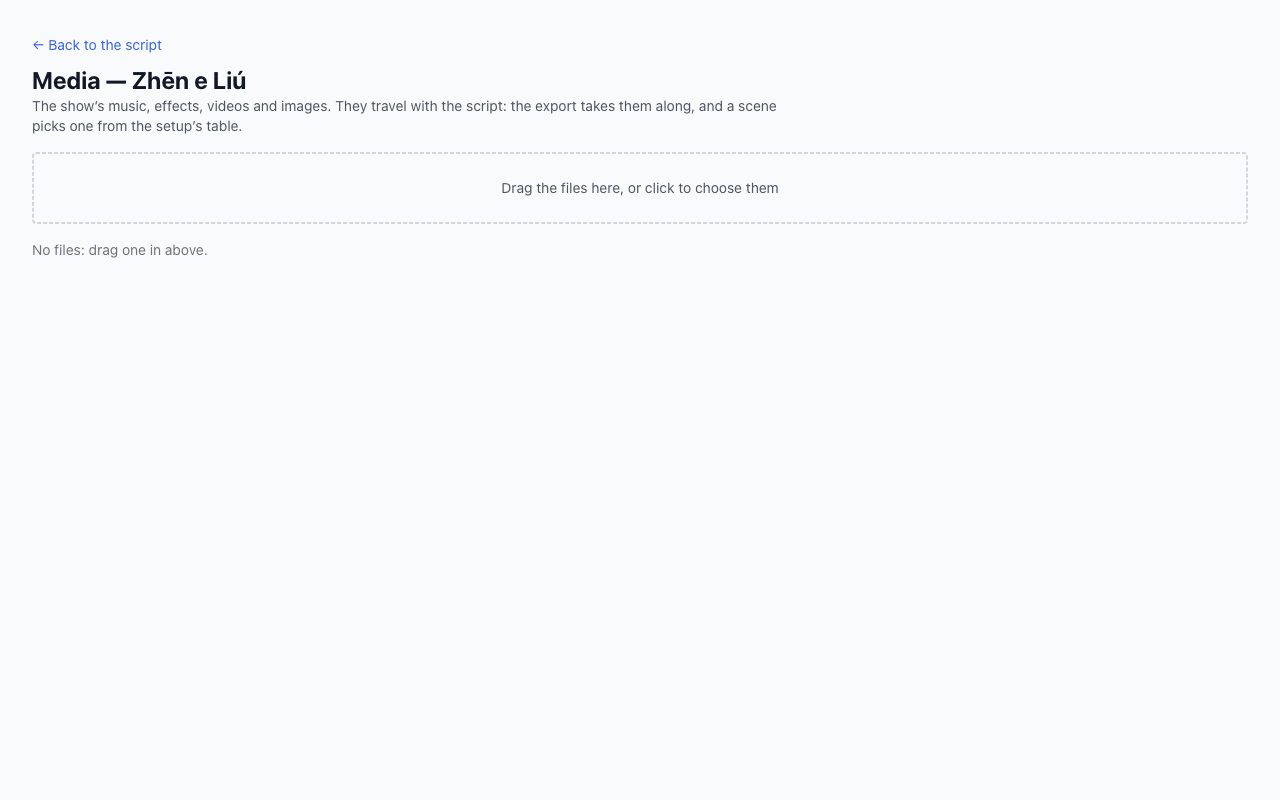
The list shows name, type, duration and size. The same file uploaded twice counts only once. A file used by a scene can't be deleted, and the program tells you which scene uses it.
Videos and images are tested right away: if one can't be projected, the program says so in red.
Recommended: MP4 H.264, 1080p, 25 or 30 frames per second; PNG or JPEG for images.
Internal audio
In the setup, choose Deus ex machina audio as the audio output. In the scenes table, click a scene's action and choose:
- the file, the volume in dB;
- whether it plays in a loop;
- whether it stops the other sounds, and how quickly.
Below the fields, a sentence sums up what will happen. Test saves and really plays the sound; Stop stops it. The sound carries on by itself until it ends or you stop it.
The internal projector
Choose Deus ex machina projector as the video output, then the screen from the list. Identify screens shows a large number on each one.
The main screen is refused on purpose: the window would cover the Regia page. You need a second screen on Extend.
For each scene, choose the file, how it fits the screen, whether it loops or ends on black, and the audio. Test saves and projects, Black turns it off.
The mouse cursor is visible if it passes over the projected screen: keep the projector where the mouse won't easily stray.
The sounds and videos chosen this way apply to every setup that uses the Deus ex machina audio or projector, because the files belong to the script: change a scene in one theatre and it changes in the others too. A new setup, or one that switches to the internal audio or projector, finds the scenes already done.
Volume over time
A sound or a video can change volume while it plays: rain that grows slowly, music that drops under a line and comes back up. The curve lives on the point the cue leads to, so the same scene can sound different at different points of the show.
In the editor open a sound or video cue with Edit: under the fade-in there is Volume over time, with the curve in small. Tap it to open it full screen, over the waveform of the file. If the scene loops, the waveform repeats at every loop.
- Tap an empty spot to add a keyframe on the curve, and drag it where you need: back and forth in time, up and down in volume.
- Corner makes the chosen keyframe a sharp attack; Remove removes it.
- One more loop makes the timeline one loop longer.
- Listen plays the file with the curve, through the computer's speakers: every keyframe you move is heard at once. Tap the ruler to listen from another point.
Save keeps the curve; Remove the curve removes it and the sound goes back to the volume of the scene. The curve works with the Deus ex machina sound and projector: with QLab, volume over time is done with its Fade cues.
With QLab or a mixer
- With QLab, open your workspace, and in the scenes table choose Match by name to connect the scenes to the cues with the same name.
- With a MIDI mixer, choose the message type, channel and values for each scene.